
Hardware where supported
If shown, Use hardware brightness lets a software-controlled display use supported hardware dimming for triggers. Unsupported displays use software dimming.
Dim automatically when you’re idle, Windows locks or your battery conditions change. Triggers temporarily limit brightness, then return control to your current settings and automation.
Find it in the appSettings Triggers
Set up your first triggerIdle for All displays is free. Pro adds lock, battery conditions and custom display scopes.
Display Dimmer · Guide examples follow version 2.2.16
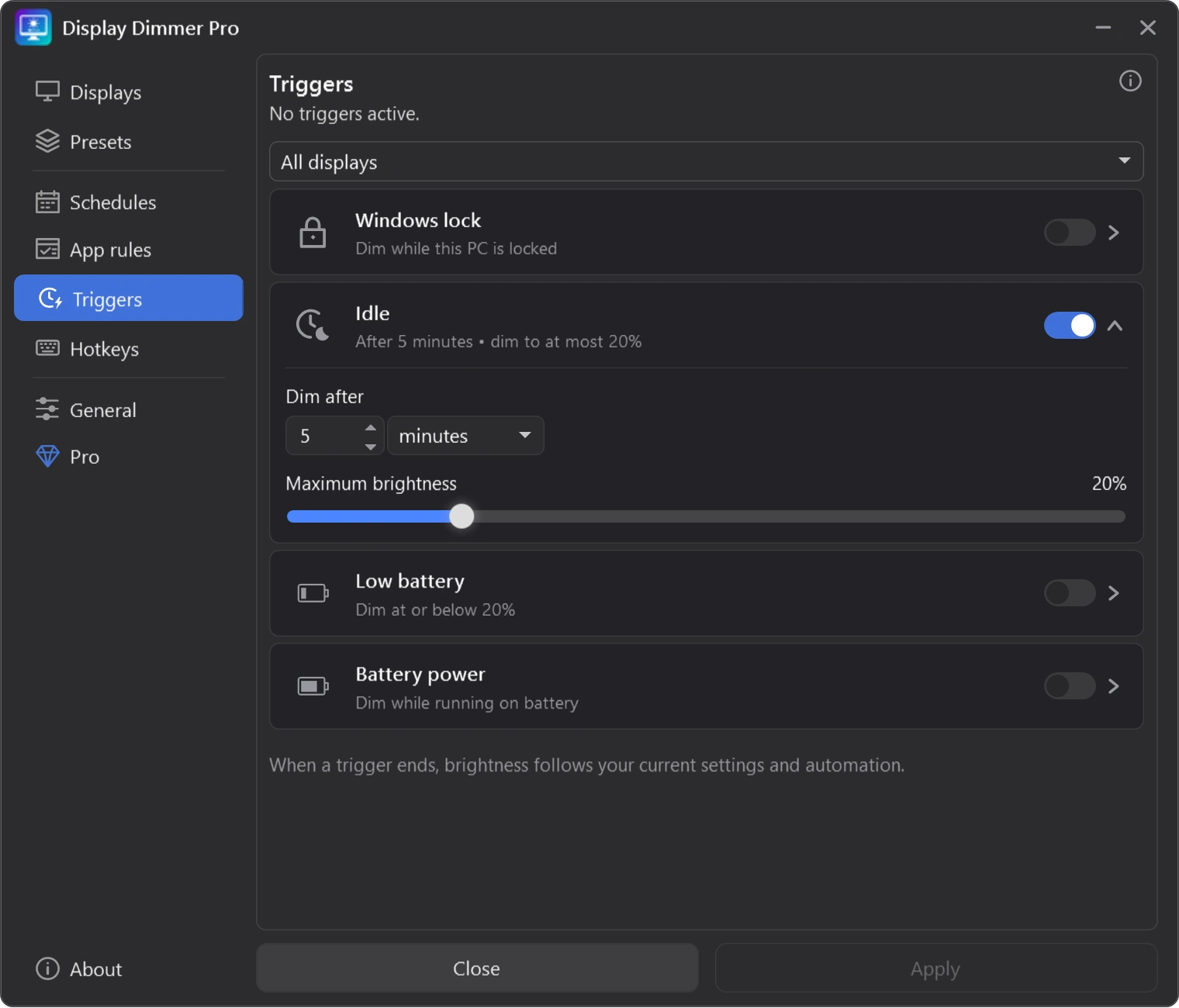
Try a 20% brightness limit after five minutes of inactivity. These are example values—you can choose your own.
Go to Settings → Triggers. Start with All displays, or choose an individual display or linked group with Pro.
Open the Idle card. Set Dim after to 5 minutes, for example. You can also use seconds or hours.
Set a limit such as 20%. This caps the brightness requested by your current settings or automation. A level already below that limit stays lower.
Turn the card On, then click Apply to save the delay and brightness limit. Keep Display Dimmer running; stop using the mouse and keyboard to test Idle, then return with input to end it.
Interactive example · your changes stay in this preview.
If shown, Use hardware brightness lets a software-controlled display use supported hardware dimming for triggers. Unsupported displays use software dimming.
All displays supplies the defaults. Pro lets individual displays or linked groups use their own trigger settings. Custom display settings take precedence over group defaults.
Display Dimmer can stay in the tray. If Triggers is disabled, turn on Triggers in General → Behavior → Automation and hotkeys.
Each card has its own limit. Enable just the conditions you want.
Dim after Windows reports no input for your chosen delay. Mouse or keyboard input ends the idle condition.
Choose Dim after and Maximum brightness. Idle waits for the full delay again after unlocking Windows or resuming from sleep.Limit brightness while your Windows session is locked. Unlocking ends that condition.
Windows lock starts with the highest priority when the setup already has Pro. Your saved order can change this. Unlocking returns control to the next matching trigger or your current settings.Use a brightness limit when Windows confirms the PC is running on battery. Plugging in ends this condition.
This follows the power source, rather than the battery percentage. If Windows has not confirmed the source, the card may show Waiting.Dim when the reported battery percentage reaches your threshold. It can stay active while plugged in and charging.
Dim at or below sets the battery threshold. Maximum brightness sets the display limit. These are separate percentages.A trigger limits the brightness your settings or automation request. It leaves contrast and color temperature alone.
With a 20% limit, a requested 70% becomes 20%. A requested 10% stays at 10%.
An illustration of a single active trigger.
The active trigger caps 70% at 20%.
Your current settings, schedules and app rules request their usual levels.
The winning trigger caps requested brightness at its own Maximum brightness.
Brightness follows current settings and automation again, including changes made while the limit was active.
For each display, the highest-priority matching, unpaused condition wins. The example below is the initial laptop order for an already-Pro setup.
Free starts with Idle before Windows lock; an already-Pro setup starts with Windows lock before Idle. Both put Low battery before Battery power on laptops, and Battery power before Low battery on batteryless desktops. Unlocking Pro later keeps the initial Free order. Dragging the cards changes their saved global priority and display order. A saved order overrides these defaults; the lowest configured percentage does not automatically win.
Idle for All displays is free. Pro adds Windows lock, Battery power and Low battery, plus individual-display and linked-group settings. Triggers are available in Display Dimmer 2.2.13 and later. Compare Free and Pro.
A trigger temporarily limits brightness. Schedules and app rules can continue requesting levels underneath. When the condition ends, brightness follows current settings and automation again. Triggers do not change contrast or temperature.
Battery power follows the power source. Low battery follows the percentage Windows reports, including while charging. It releases once the percentage rises clear of the threshold. For a 20% threshold, it remains active at 21% and releases at 22% to avoid rapid switching.
Waiting means Windows has not supplied the battery information needed for that condition. Unavailable means no usable system battery was detected. Your saved settings remain intact. Pro does not add missing battery support.
A manual brightness change pauses matching triggers for the displays you changed. Use Resume triggers in the Triggers status line, Resume automation in the main window, or the paused status in Displays to restore saved behavior. Resume does not save unfinished edits. Apply in Triggers also saves edits and resumes the selected scope. Clicking Resume counts as input, so Idle may end instead of dimming immediately.
Keep Display Dimmer running, enable Triggers in General, and make sure the card is On for the intended scope. Click Apply for delay, threshold, Maximum brightness or inheritance changes. Check for custom display settings, a higher-priority trigger, a manual pause or waiting battery information. Displays with brightness control disabled are not dimmed.
With Pro, choose the display or linked group, expand the trigger, choose Use All displays settings or Use group settings, and click Apply. This removes that scope’s custom settings for the whole trigger, including its on/off state. The tooltip names the source you will use. Individual displays take precedence over linked groups, then All displays.
Idle accepts 1 second through 24 hours. Maximum brightness accepts 0–100%. Low battery’s threshold accepts 1–100%. These are brightness limits; choosing a higher limit does not raise a requested brightness that is already lower.