Balance the light
Choose brightness that suits your surroundings while keeping the image easy to see. Deal with reflected lamps and windows separately.
DISPLAY DIMMER · WINDOWS 11 & 10
Adjust brightness, keep text readable and try warmer colors if you prefer them. Display Dimmer helps you choose your screen settings; this guide brings them together with room lighting and regular breaks.
Free brightness control. Optional Pro color temperature and presets.
START WITH THE WHOLE SETUP
A screen that feels harsh can call for a brightness adjustment, clearer text or a change in the room. A stronger warm tint is only one optional choice.
Choose brightness that suits your surroundings while keeping the image easy to see. Deal with reflected lamps and windows separately.
Increase text size or display scaling in Windows when content is too small. Brightness controls do not enlarge text.
If you prefer a warmer image, try a mild color-temperature change. It changes how the screen looks; it is not eye protection or a treatment.
A PRACTICAL EYE COMFORT ROUTINE
Change one thing at a time and check the apps you actually use. Start with lighting and readability, then choose the brightness and warmth you want.
Reposition a lamp or screen, or adjust blinds, if light reflects in the display. Lowering screen brightness does not remove those physical reflections. The American Academy of Ophthalmology recommends matching brightness to your surroundings and reducing glare.
Use Windows controls for a laptop or supported hardware brightness in Display Dimmer. If minimum hardware brightness still feels too bright, software dimming can darken the image further where supported. Follow the screen dimmer guide or the laptop dimming steps.
In Windows 11, open Settings → Accessibility → Text size. In Windows 10, use Settings → Ease of Access → Display → Make text bigger. For larger apps and other items, adjust Scale under Settings → System → Display. These are built-in Windows settings; Microsoft explains both options.
Windows Night light is a built-in option. Display Dimmer’s Temperature control lets you choose warmth per display, with a 30-minute daily free preview and unlimited control in Pro. Keep the change mild enough that text stays clear, and use neutral colors when judging photos or design work.
The National Eye Institute recommends a break every 20 minutes: look at something about 20 feet away for 20 seconds. Use a separate reminder if useful; Display Dimmer does not provide a break timer.
WHERE DISPLAY DIMMER FITS
Make manual adjustments for free. Use Pro when you want to save setups, add more automation or keep temperature control available all day.
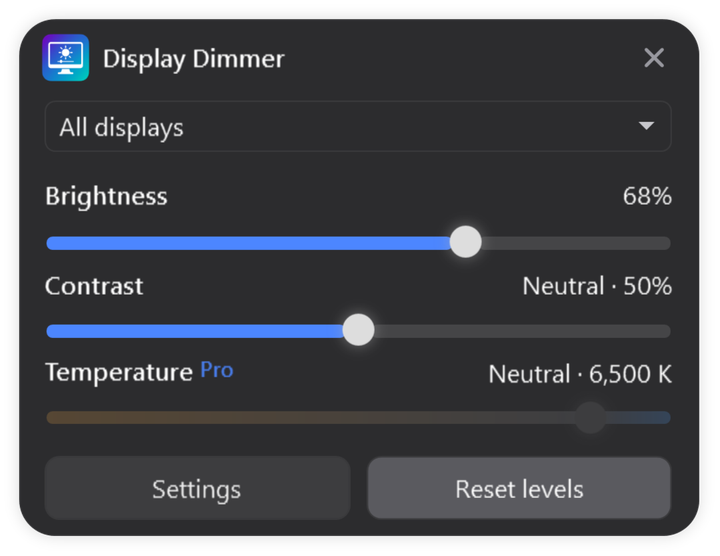
Select the laptop or monitor you want to adjust, or use All displays for enabled screens together. Free includes compatible DDC/CI hardware brightness and software gamma dimming. Use Windows or your laptop’s brightness keys for the built-in panel’s hardware brightness.
The Temperature slider changes color balance toward warmer or cooler colors. Try warmer colors as a comfort preference, then return to Neutral · 6,500 K when you want the app’s tint removed. Unlimited temperature control requires Pro.
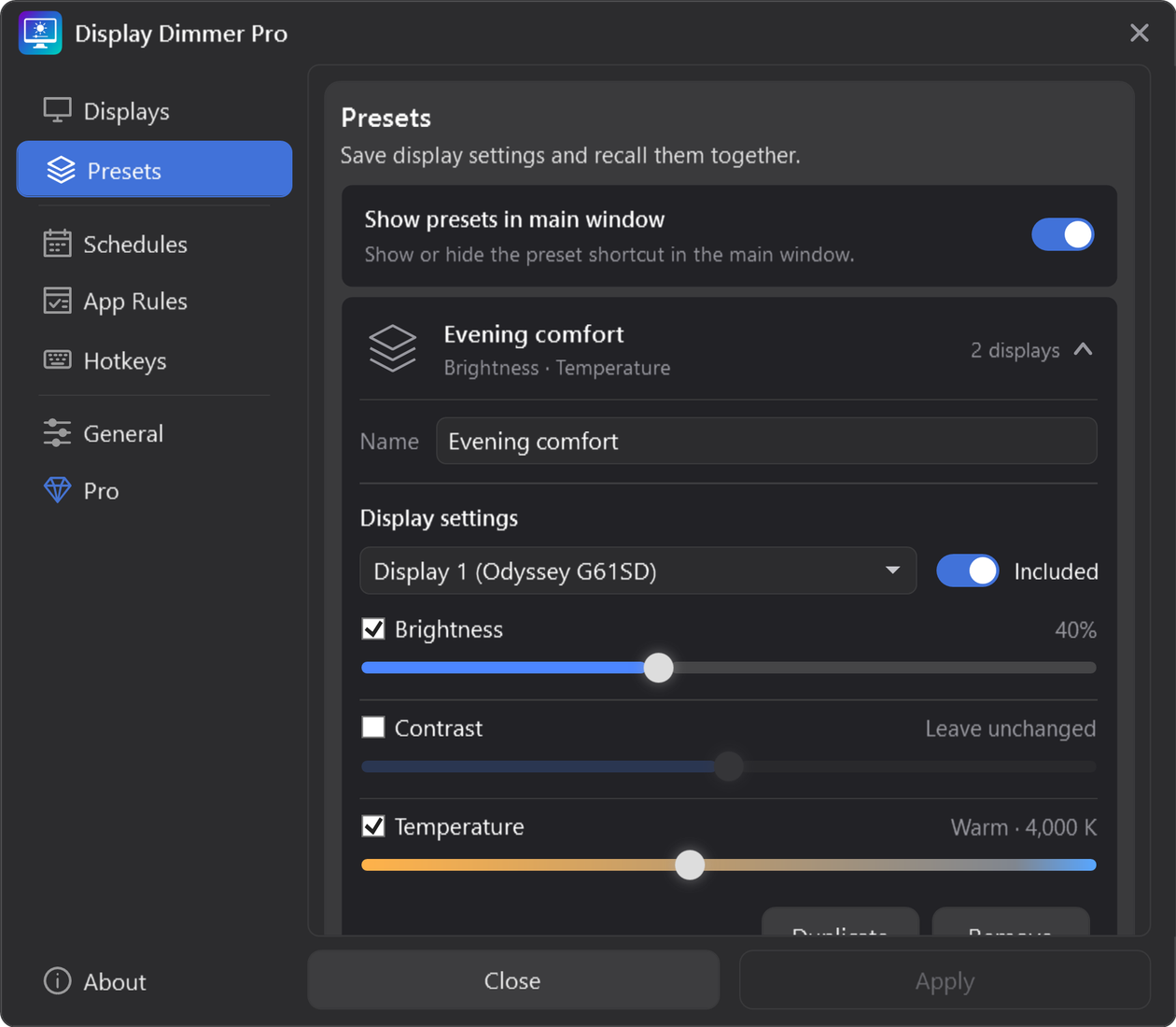
Save your preferred brightness, contrast and temperature in presets. A warmth-only preset can leave brightness and contrast unchanged; a neutral preset can help you switch back for color-sensitive work.
Free includes one all-display brightness schedule and two all-display hotkeys. Pro adds more schedules, per-display targeting and unlimited temperature control. Automation applies the levels you choose; it does not sense the room’s light.
LET THE SETUP FOLLOW YOUR DAY
Your surroundings and tasks can change. Adjust for the room and what you need to read, rather than aiming for one universal brightness percentage.
Keep text and details easy to see. If a window or lamp is reflected in the screen, adjust that light source or the screen position instead of relying on dimming alone.
Lower brightness if the screen feels too bright for the room. Try a little warmth if you like it, and keep a neutral option available. Stronger filtering is not automatically better.
Warm settings intentionally change color balance. Remove the tint when comparing colors in photos, artwork or design. Display Dimmer is not a display-calibration tool.
USEFUL ANSWERS, CLEAR LIMITS
Software such as Display Dimmer helps you adjust brightness and optional color temperature to your viewing preferences. Combine those settings with readable text, suitable lighting and breaks. It does not diagnose or treat eye conditions or replace professional eye care.
There is no one percentage for every screen and room. Choose a level that keeps the content readable and suits the surrounding light. The same percentage can look different on two displays. Start with small changes rather than dimming so far that reading becomes difficult.
No such protection is claimed here. The American Academy of Ophthalmology says the small amount of blue light from computer screens has not been shown to harm the eyes, and that digital eye discomfort is not caused by blue light. Choose warmer colors if you prefer their appearance, rather than treating them as a guaranteed remedy.
Yes. Manual brightness, individual display control, compatible hardware brightness and software dimming are free. Free also includes one all-display schedule, one all-display app rule, two all-display hotkeys. Presets, extra targeting and unlimited temperature control are optional Pro features. See Free and Pro.
It can lower the brightness of the displayed image, but it does not remove light reflected from the screen’s surface. Adjust the screen position, lamp or blinds to address those reflections. Treat room lighting and screen brightness as separate parts of the setup.
Display Dimmer does not provide ambient-light sensing. Its schedules and rules use the settings and conditions you choose. Some Windows laptops have their own automatic brightness option; check the available controls under Settings → System → Display. See Microsoft’s brightness guide.
Persistent discomfort, redness, pain or blurred vision deserves advice from an eye care professional. Screen settings are not a substitute for an examination. The AAO’s digital eye strain guide explains when to seek help.
Further reading: AAO screen-use guidance, NEI healthy vision habits and Microsoft text size and scaling. Software dimming and color adjustments can also be affected by HDR, graphics drivers and other color tools.
Start with free brightness control. Explore warmer colors if you prefer them.
Install Display Dimmer freeMicrosoft Store · Windows 11 and 10 · Optional Pro upgrade