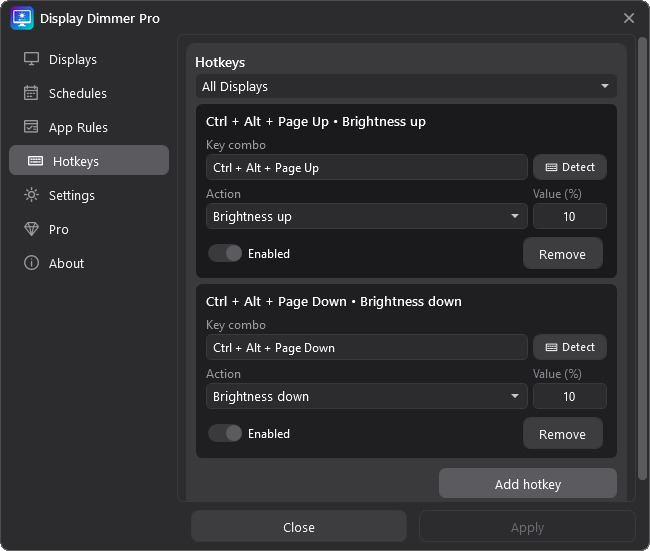
Choose where the hotkey applies.
Use All Displays to control every monitor together, or choose a specific display or linked group when one target needs its own shortcut.
Control brightness, contrast, display state, and automation without opening Display Dimmer.
Use All Displays to control every monitor together, or choose a specific display or linked group when one target needs its own shortcut.
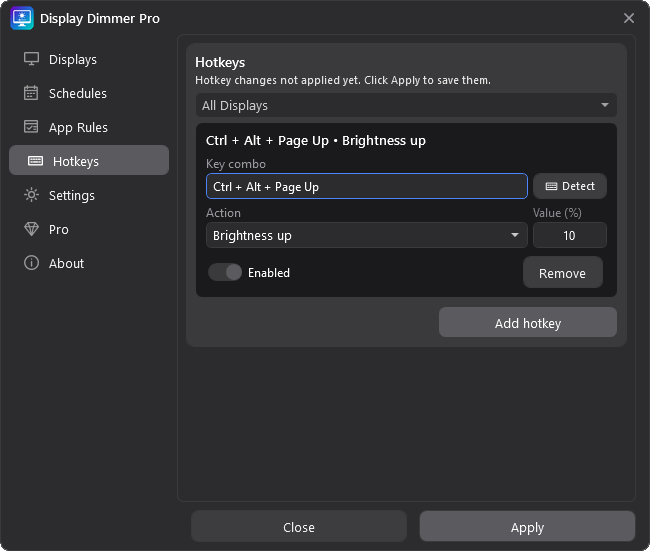
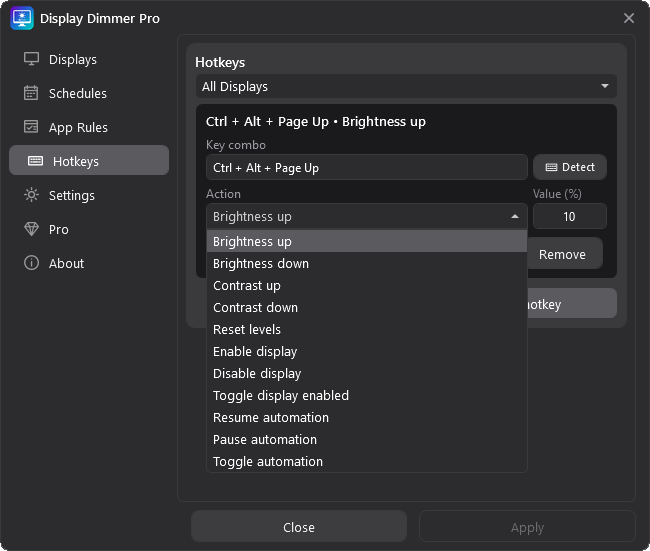
Click Add hotkey, click the key combo box, press the shortcut you want, choose an action, enter a value if needed, then click Apply.
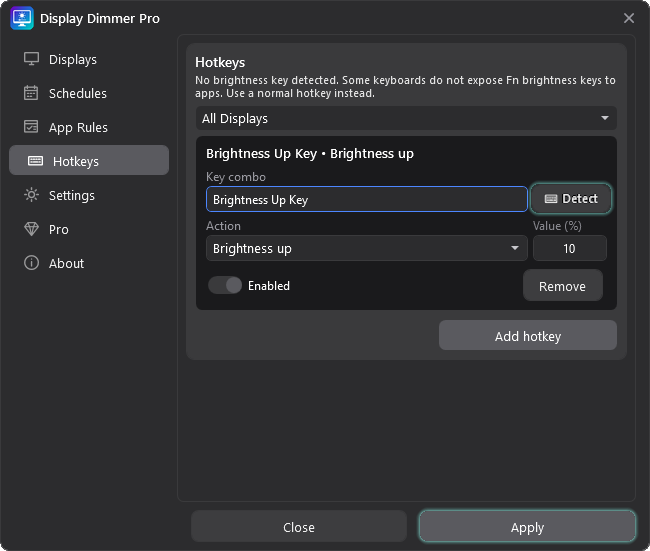
If your keyboard exposes brightness keys to Windows, choose Brightness up or Brightness down, click Detect, press the matching key, then click Apply. Make sure each detected key uses the matching brightness action.
Hotkeys work globally, so they can respond even when Display Dimmer is not the active window. Enabled rows become active after you click Apply.
Hotkey changes are not active until you click Apply.
Normal hotkeys need Ctrl, Alt, Shift, or Win. Modifier-only shortcuts are rejected.
Display Dimmer blocks Enter and common shortcuts like Ctrl+C, Ctrl+V, and Ctrl+S so it does not steal everyday commands.
Each enabled shortcut must be unique.
Brightness and contrast actions use the Value box and repeat while held. Reset, display enable, and automation actions run once and do not need a value.
If another app already owns a global shortcut, Windows may reject it. Choose combinations that are unlikely to belong to the active app.
Combinations like Ctrl + Alt are usually safer than plain one-modifier shortcuts.
Page Up, Page Down, arrow keys, and function keys work well with modifiers.
Display Dimmer blocks common app shortcuts so it does not steal everyday commands.
Each enabled shortcut must be unique. Change the old row before assigning the same hotkey somewhere else.
Make sure the row is enabled, click Apply after editing, and avoid shortcuts already used by Windows or another app.
Create shortcuts for brightness, contrast, display state, and automation without opening the main window.