
01
Choose the display scope.
Use All Displays for a simple setup, or target one monitor when only that screen should change.
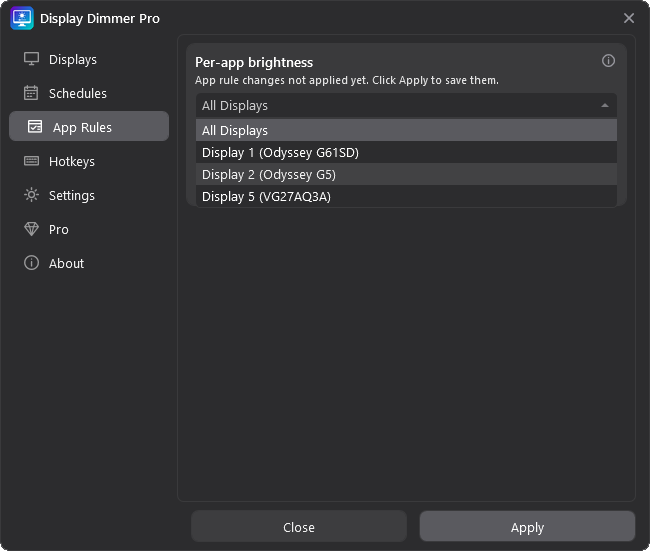
Create app-based or fullscreen rules so Display Dimmer changes brightness when your work app, browser, game, or media window is active.
Use All Displays for a simple setup, or target one monitor when only that screen should change.
Click Add rule, then browse for the app's real .exe, drag in an executable or shortcut, or use fullscreen detection.
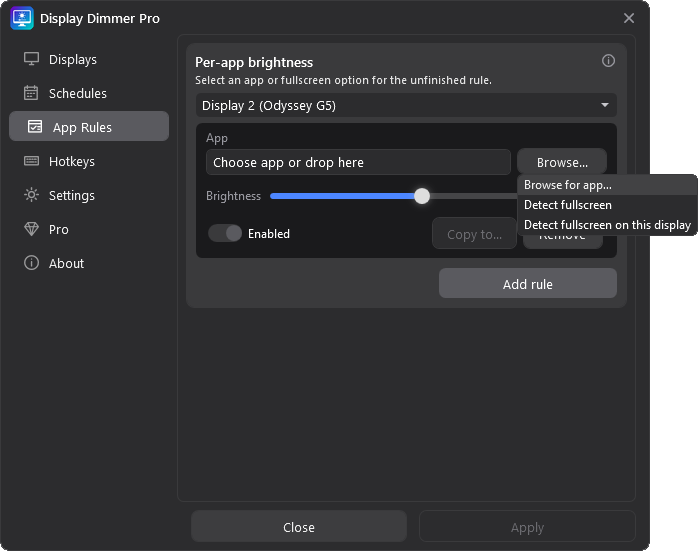
Choose the brightness level, turn the rule on, and click Apply. Display Dimmer will use it when that app is active.
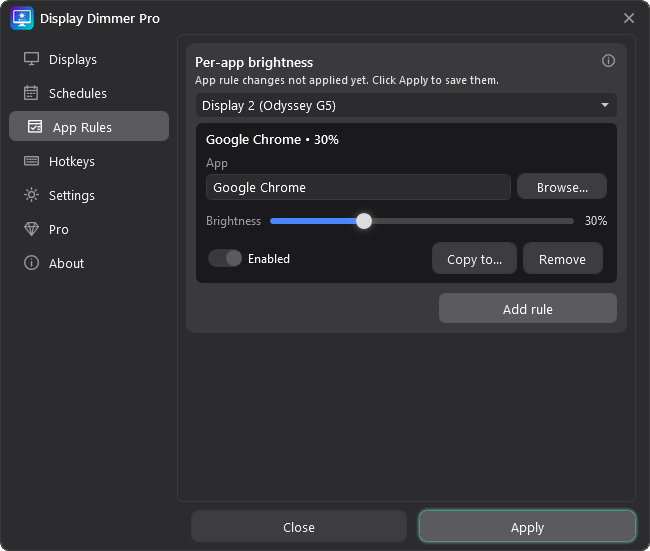
Some apps open through shortcuts, launchers, browser helpers, or Store wrappers. App rules work best when the rule points to the executable Windows is actually running.
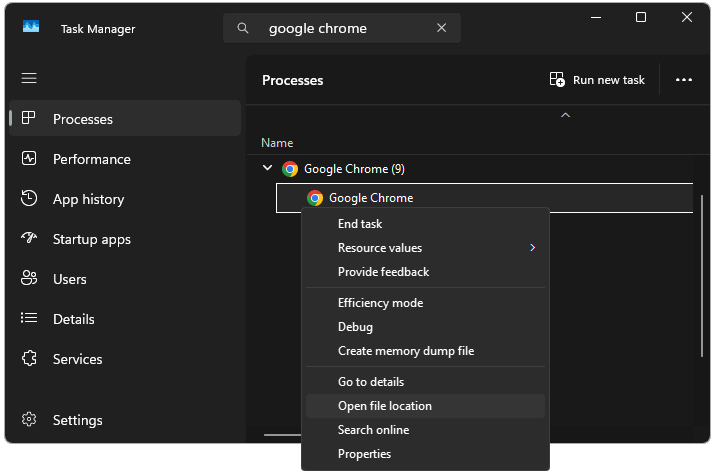
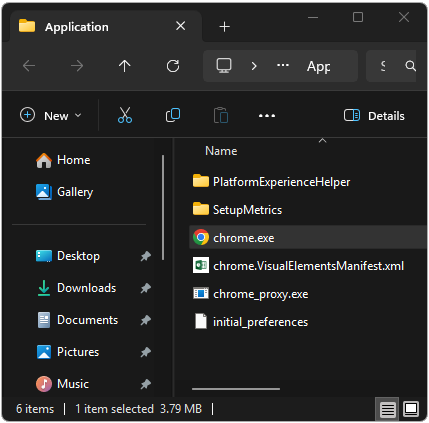
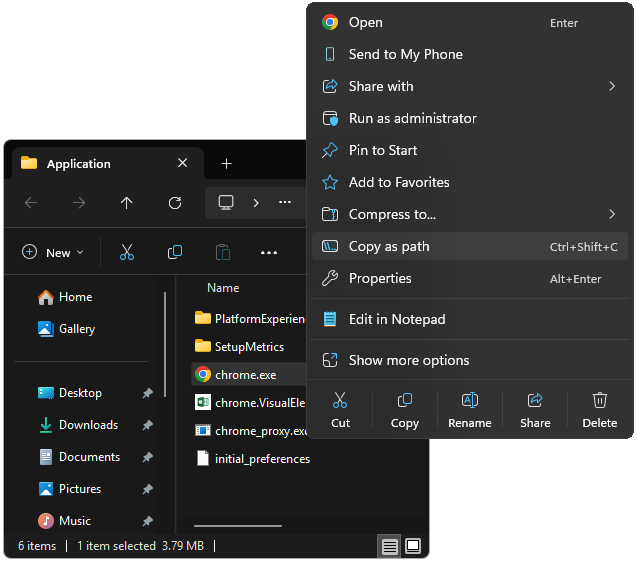
Choosing the correct executable helps rules trigger reliably when your app is active.
Pick the real app or game executable, such as chrome.exe. This gives Display Dimmer the clearest match.
A Windows shortcut can work if it points directly to a real executable. If it opens a launcher, URL, or helper app, use Task Manager to find the real .exe.
Internet shortcuts and launcher-only shortcuts do not reliably identify the running app that should trigger the rule.
If Display Dimmer says changes have not been applied yet, click Apply before closing it.
Display Dimmer checks foreground app rules first, then fullscreen rules, then running-process rules. More specific display scopes win over All Displays; ties use the saved rule order.
The app rule releases the display. If a schedule is active, the schedule takes over; otherwise Display Dimmer restores the brightness saved before the rule applied.
Display Dimmer can watch for fullscreen games, video, and presentations, then apply the brightness level you choose. This helps when different apps go fullscreen, or when a game or video player is hard to match by executable.



Create rules for browsers, work apps, media, games, and fullscreen workflows.
With Pro, app rules can also adjust color temperature. Apply warmer colors or a neutral setting for specific apps.