Lower the panel first
Use Windows brightness controls to reduce the laptop’s physical brightness. The available range depends on its panel and driver.
DISPLAY DIMMER · WINDOWS 11 & 10
Laptop still too bright at its lowest setting? Lower the panel brightness with your laptop’s brightness keys or Windows settings, then use Display Dimmer’s free software dimming to make the image darker.
Manual brightness control is free. Pro is optional.
· Display Dimmer 2.2.12
WHEN THE LOWEST SETTING IS STILL TOO MUCH
The lowest Windows brightness setting is the panel’s minimum, which can still look bright in a dark room. Software dimming gives you another way to lower the visible image.
Use Windows brightness controls to reduce the laptop’s physical brightness. The available range depends on its panel and driver.
Software gamma dimming darkens the image sent to the screen. It can make the laptop look dimmer after the hardware reaches its minimum.
With extra monitors connected, select the built-in screen in Display Dimmer. You can dim it without changing the other displays.
HARDWARE FIRST. SOFTWARE AFTER.
Start with the laptop’s own brightness control, then add software dimming in Display Dimmer. Pause any active schedule or app rule that changes brightness while you set this up.
Use your laptop’s brightness keys or open Settings → System → Display and lower Brightness. This changes the panel’s own hardware brightness. Stop at a comfortable level, or its minimum if the screen is still too bright.
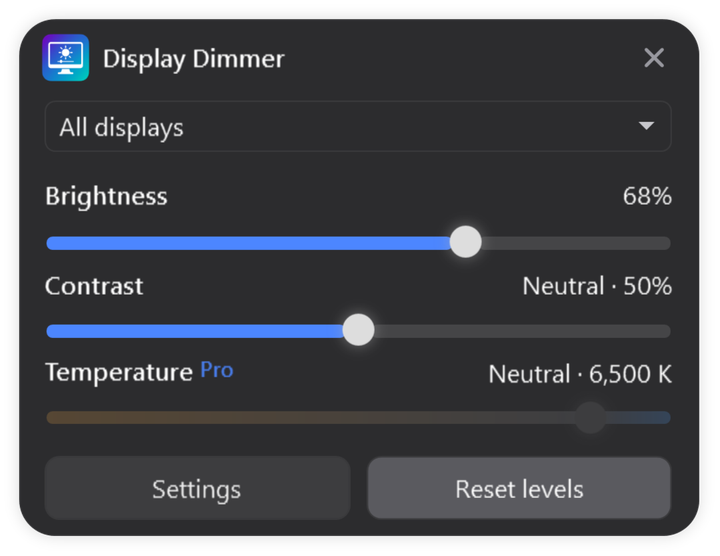
Install the free app and open Settings → Displays. Find the built-in panel and keep Brightness control enabled on. Then select the laptop in the main window’s display menu, rather than All displays, to leave your other screens unchanged.
Lower Brightness gradually until the displayed image is at the level you want. This adds software gamma dimming while the panel stays at the hardware brightness you set in Windows.
Return the app’s Brightness to 100% to remove its extra software dimming. Then raise brightness with your laptop keys or Windows settings if you want a brighter panel.
In Windows 11, you can also open Quick Settings from the taskbar. In Windows 10, open Action center. The available brightness range depends on the laptop’s panel and display driver.
Explore the brightness slider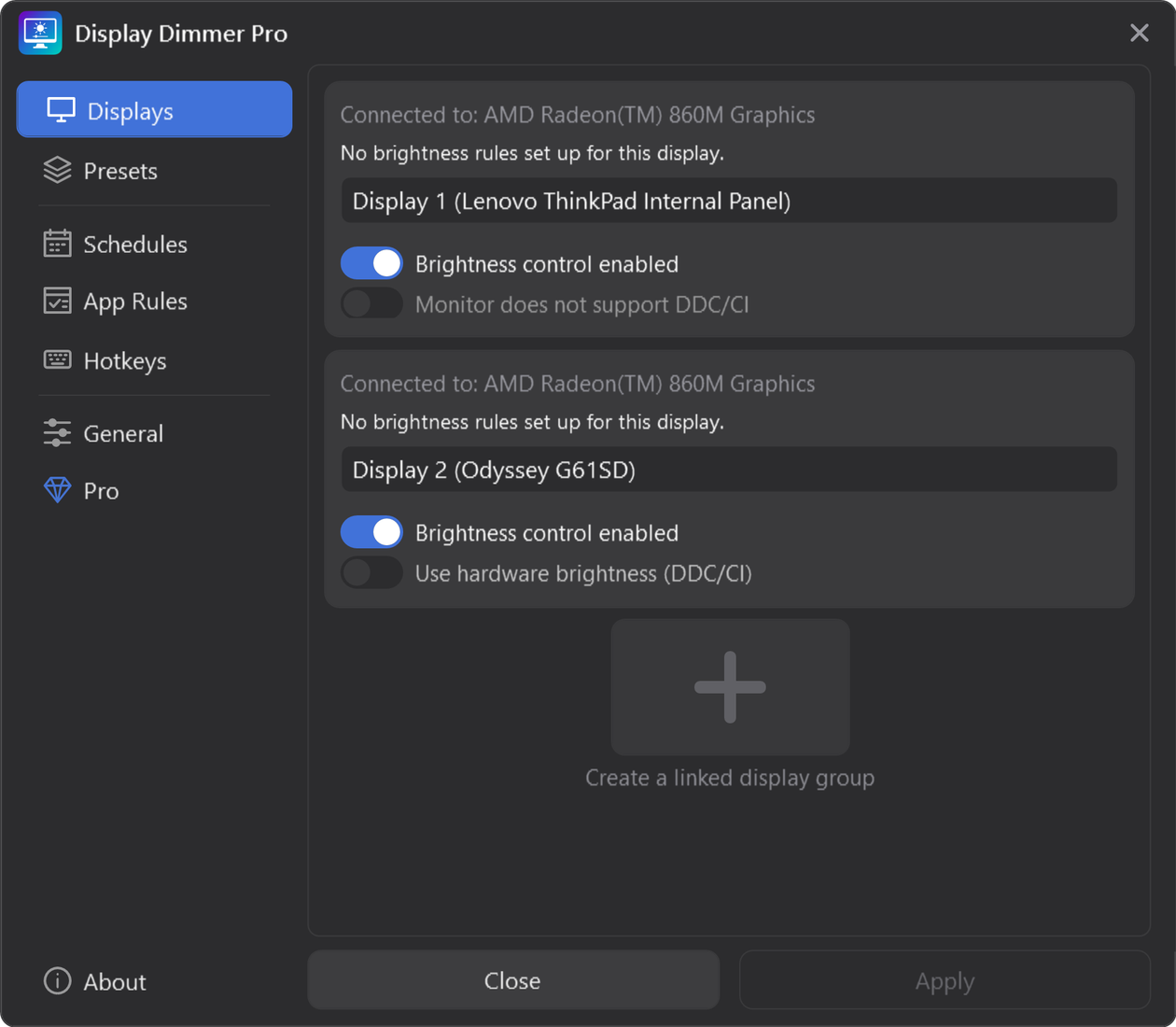
TWO DIFFERENT BRIGHTNESS SETTINGS
Hardware brightness and software brightness are different controls. An app setting of 100% in software mode removes its extra dimming; it does not mean the panel is at maximum brightness.
The laptop’s brightness keys and Windows slider change the built-in display’s hardware setting. Start here when the screen is too bright.
A setting of 0% is the lowest available level, rather than a promise that the panel turns off.
Display Dimmer changes the image sent to the screen through software gamma dimming. It can make the image look darker after the panel reaches its hardware minimum.
Graphics drivers, HDR and other color tools can affect the result. Test it on your own laptop.
Leave Windows brightness at the panel level you want, then use the app’s slider for extra dimming. Software 100% removes Display Dimmer’s extra brightness dimming; it does not set the panel to maximum.
Software dimming changes the image, so it does not guarantee backlight power savings.
WHEN YOUR LAPTOP IS SET UP
Start with manual brightness. Add shortcuts, a warmer image or saved levels if they fit how you use the laptop.
Free includes two all-display hotkeys. Pro adds more shortcuts and lets you target the laptop while leaving external screens alone.
Color temperature changes the warmth of the image separately from brightness. Display Dimmer offers a free daily preview, with unlimited temperature control in Pro.
Store brightness, contrast and temperature in a preset and recall it from the main window. Leave unneeded settings out of the preset.
Free includes one all-display schedule. Pro adds more schedules and per-display targeting, so your laptop can follow its own routine.
A FEW USEFUL ANSWERS
You cannot set a negative hardware brightness in Windows. Software dimming can make the displayed image darker while the panel stays at its lowest hardware setting. That is what “below minimum” means here.
Yes. Manual brightness adjustments, individual display selection and software gamma dimming are included in Free. You do not need Pro to follow this guide. Compare Free and Pro for optional presets and extra automation.
No. Display Dimmer’s software dimming darkens the image sent to the panel. Use your laptop’s brightness keys or Windows settings to change the panel’s hardware brightness. You can use both adjustments together.
For a built-in laptop panel, check Settings → System → Display and update the display driver if the control is missing or does not work. Display Dimmer can offer software dimming where supported, but it does not restore Windows’ missing slider. See Microsoft’s brightness troubleshooting notes.
Some laptops adjust brightness for ambient light or on-screen content. Check the available brightness options in Windows Display settings. Also check active Display Dimmer schedules and app rules, which can apply their own levels.
Software gamma dimming depends on graphics driver support. HDR and other color tools can limit or overwrite it, so the effect is not guaranteed on every setup. Compare behavior with HDR off and avoid having multiple tools change the same display’s colors. Our HDR brightness guide explains the main limitations.
No. Windows Night light makes the image warmer. It does not provide a separate hardware brightness control below the panel’s minimum. Use brightness controls for dimming and color temperature for warmth. Read the blue light filter guide for that distinction.
Yes, separately or together with the laptop. Compatible external monitors can use DDC/CI hardware brightness; software dimming is another option where supported. Select All displays only when you want to change all enabled screens. See our monitor brightness control guide.
Sources: Microsoft’s Windows brightness and color controls and gamma support and limitations.
Lower hardware brightness first. Try free software dimming for a darker image.
Install Display Dimmer freeAvailable from Microsoft Store for Windows 11 and 10.