
01
Open Schedules and choose the display.
Open Display Dimmer, select Schedules, then choose All Displays or a specific monitor. Use linked groups when multiple displays should follow the same schedule.
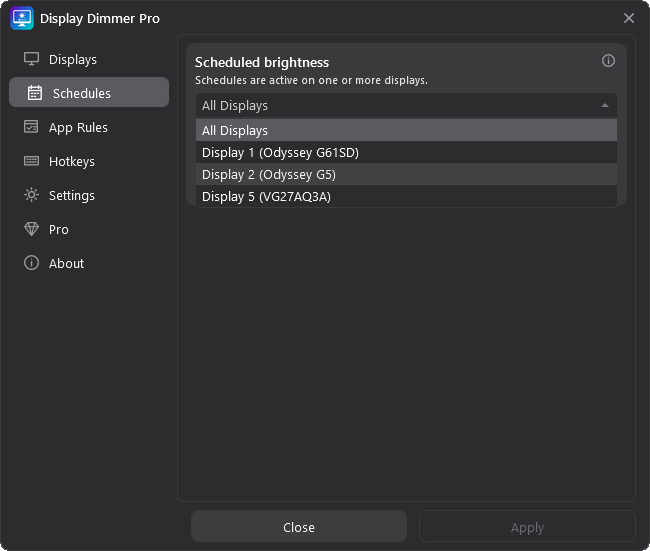
Set Display Dimmer to brighten your monitors during work hours, dim them at night, or target one display with its own routine. Schedules use your Windows clock and run after you click Apply.
Open Display Dimmer, select Schedules, then choose All Displays or a specific monitor. Use linked groups when multiple displays should follow the same schedule.
Click Add schedule, pick a start and end time, set the brightness level, and keep it enabled if it should run automatically. A clear overnight entry looks like 08:00pm until 06:00am • 50%. Click Apply before closing Display Dimmer.
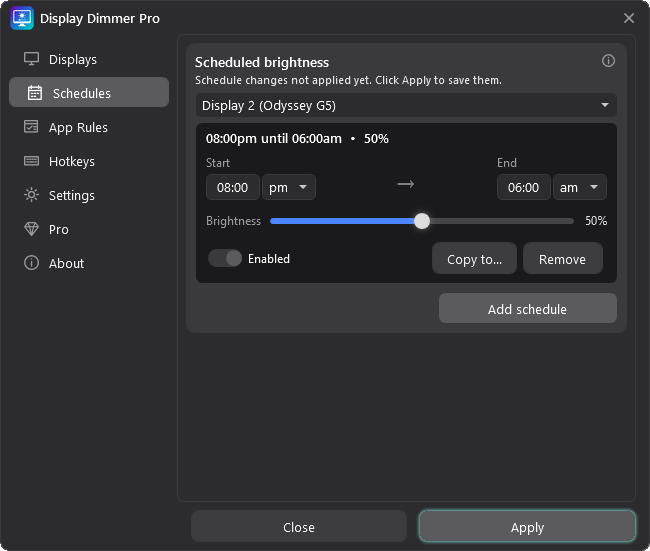
A schedule can run during normal working hours or start in
the evening and end the next morning.
For most users, one All Displays schedule is the easiest place to start.
Use a specific display when one screen needs a different brightness routine than the others.
Use Copy to... when you want the same schedule on another display or scope.
If Display Dimmer says changes have not been applied yet, click Apply before closing it.
Display Dimmer uses the most specific active schedule for each display: that display first, then linked groups, then All Displays. Within the same scope, the earlier saved schedule wins.
Display Dimmer restores the brightness it captured before the schedule took over. If an app rule is active, the app rule stays in charge until it stops matching.
Use an overnight schedule when brightness should change in the evening and continue into the next morning. For example, 08:00pm until 06:00am means Display Dimmer uses that brightness overnight.
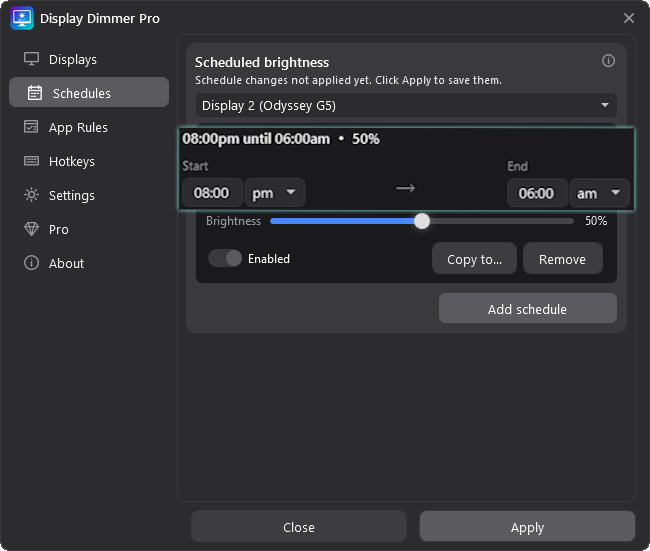
Create schedules for work hours, evenings, overnight dimming, and per-display routines.
With Pro, enable Temperature in a schedule to add warmer evening colors. Learn how to schedule blue light filtering.