A laptop on its own
Lower the panel brightness with Windows, then use software dimming for a darker image.
DISPLAY DIMMER · WINDOWS 11 & 10
Control laptop and external monitor brightness from one simple window on Windows 11 and 10. Adjust screens separately or together, with hardware brightness where supported and software dimming when you need it.
Free brightness control. Optional one-time Pro upgrade.
ONE APP, YOUR WHOLE DESK
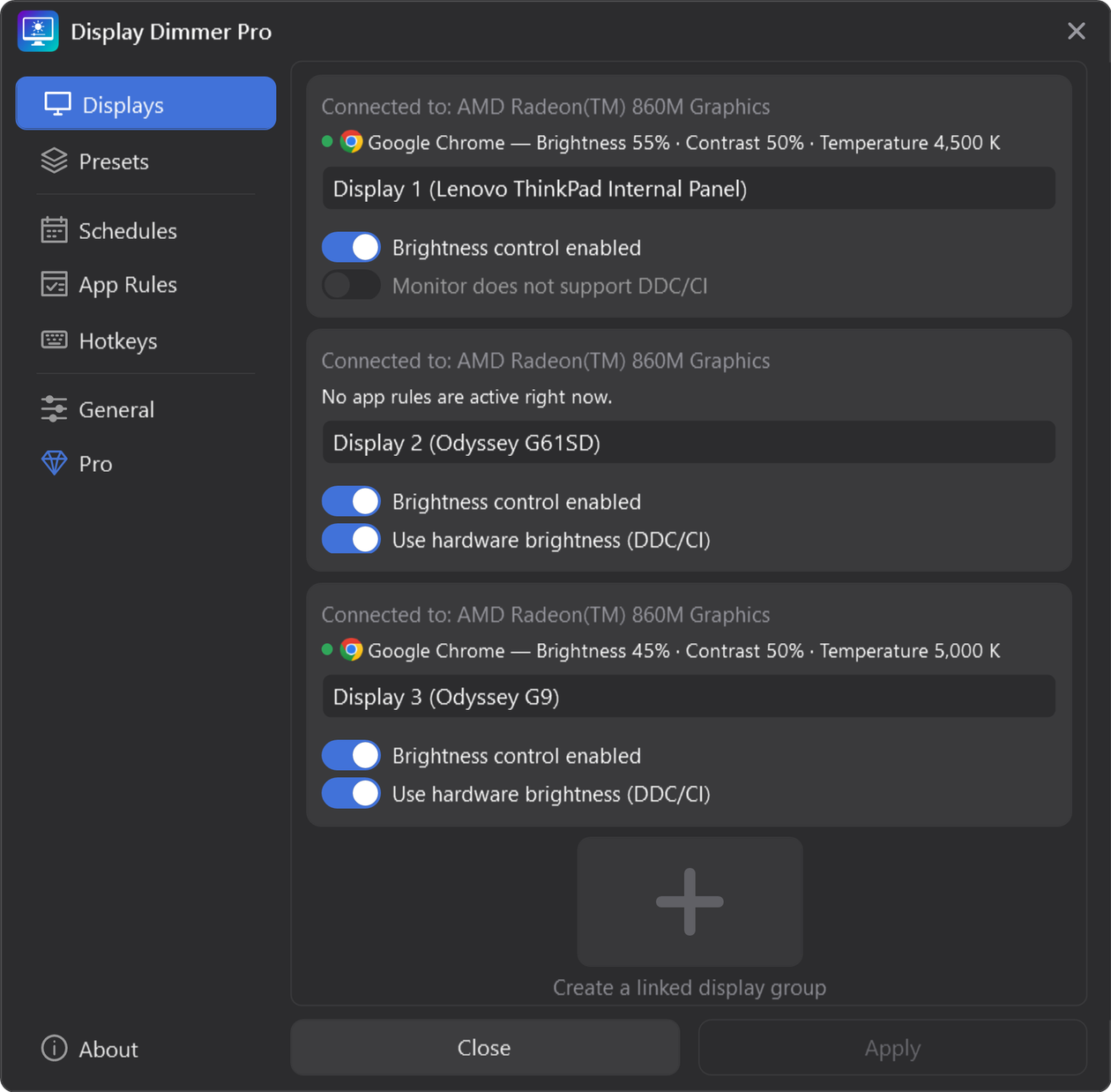
A bright laptop and a dim second monitor do not have to share one setting. Choose the screen you want to change.
Lower the panel brightness with Windows, then use software dimming for a darker image.
Change compatible external monitor brightness through DDC/CI, without reaching around for the monitor’s buttons.
Set individual levels or choose All displays to adjust enabled screens together. Pro adds linked display groups.
A SIMPLE START
A few steps from a brighter screen to a better-balanced desk.
Get the free Windows app from Microsoft Store, then open its main window.
In Settings → Displays, check the recognized screens. Enable available hardware brightness, or leave it off to use software dimming.
Select one display or All displays in the main window, then move Brightness to the level you want. Reset levels restores 100% brightness, 50% contrast and neutral temperature.
THE RIGHT CONTROL FOR THE SCREEN
Display Dimmer offers different ways to change brightness. What is available depends on your screen and its connection.
Adjusts a compatible monitor’s own brightness setting. Some monitors require DDC/CI to be enabled in their on-screen menu.
Support can vary through docks, adapters and KVMs.
Use your laptop’s brightness keys or Windows Display settings to lower the panel’s own brightness.
Display Dimmer can then dim the image further with software brightness. Follow the laptop screen dimmer guide.
Gamma dimming changes the image sent to the display. It can help when hardware control is unavailable or the screen is still too bright at minimum.
HDR and other color tools can affect software dimming.
LESS ADJUSTING, MORE DOING
Keep the slider close, or let saved settings handle the familiar parts of your day.
Set a lower brightness for the evening and a different level for the next morning. Free includes one all-display schedule.
Use saved levels when an app is active, including a fullscreen condition. Free includes one all-display app rule.
Change brightness without opening the window. Free includes two all-display hotkeys; Pro adds more actions and targeting.
Save a display setup and recall it from the main window, tray menu, hotkeys, schedules or app rules.
START WITH WHAT YOU NEED
Everyday control for your laptop and monitors.
More ways to save, target and automate your setup.
A FEW USEFUL ANSWERS
For a built-in laptop screen, start with the brightness slider in Windows’ taskbar controls or Settings → System → Display. To manage laptop and external screens from one app, install Display Dimmer, choose a display and move its Brightness slider. Supported hardware controls and software dimming are available in Settings → Displays.
Yes, when the monitor and connection support it. Display Dimmer can use DDC/CI to adjust a compatible monitor’s hardware brightness. Enable DDC/CI in the monitor’s own menu if needed. When hardware control is unavailable, software gamma dimming can darken the displayed image instead.
Windows may not show its brightness slider for an external monitor. Use the monitor’s buttons or an app with compatible DDC/CI support. Display Dimmer provides its own controls; installing it does not add an external-monitor slider to Windows Quick Settings.
Yes. Select one display to change its brightness without changing the others, or select All displays to adjust enabled screens together. Pro also lets you create linked display groups for selected screens.
Yes. Brightness and supported contrast controls, individual and all-display adjustments, DDC/CI support and software gamma dimming are included in Free. Free also includes one all-display schedule, one all-display app rule and two all-display hotkeys. Pro adds presets, linked groups, more automation and unlimited temperature control.
Software dimming can make the image darker after a monitor’s hardware brightness reaches its lowest setting. It changes the displayed image rather than lowering the hardware backlight further. HDR, graphics drivers and other color tools can affect the result.
Compatibility depends on the display, graphics driver and connection. A dock, adapter or KVM can prevent DDC/CI commands from reaching a monitor. HDR can also limit software gamma dimming. Test the control method on your own setup; if possible, try a direct connection to check hardware support.
For the built-in Windows controls, see Microsoft’s brightness and color guide. For your setup, explore our DDC/CI connection guide and HDR brightness guide.
Try Display Dimmer’s free brightness controls on your own setup.
Install Display Dimmer freeAvailable from Microsoft Store for Windows 11 and 10.