DISPLAY DIMMER

External monitor brightness control —
from one place.

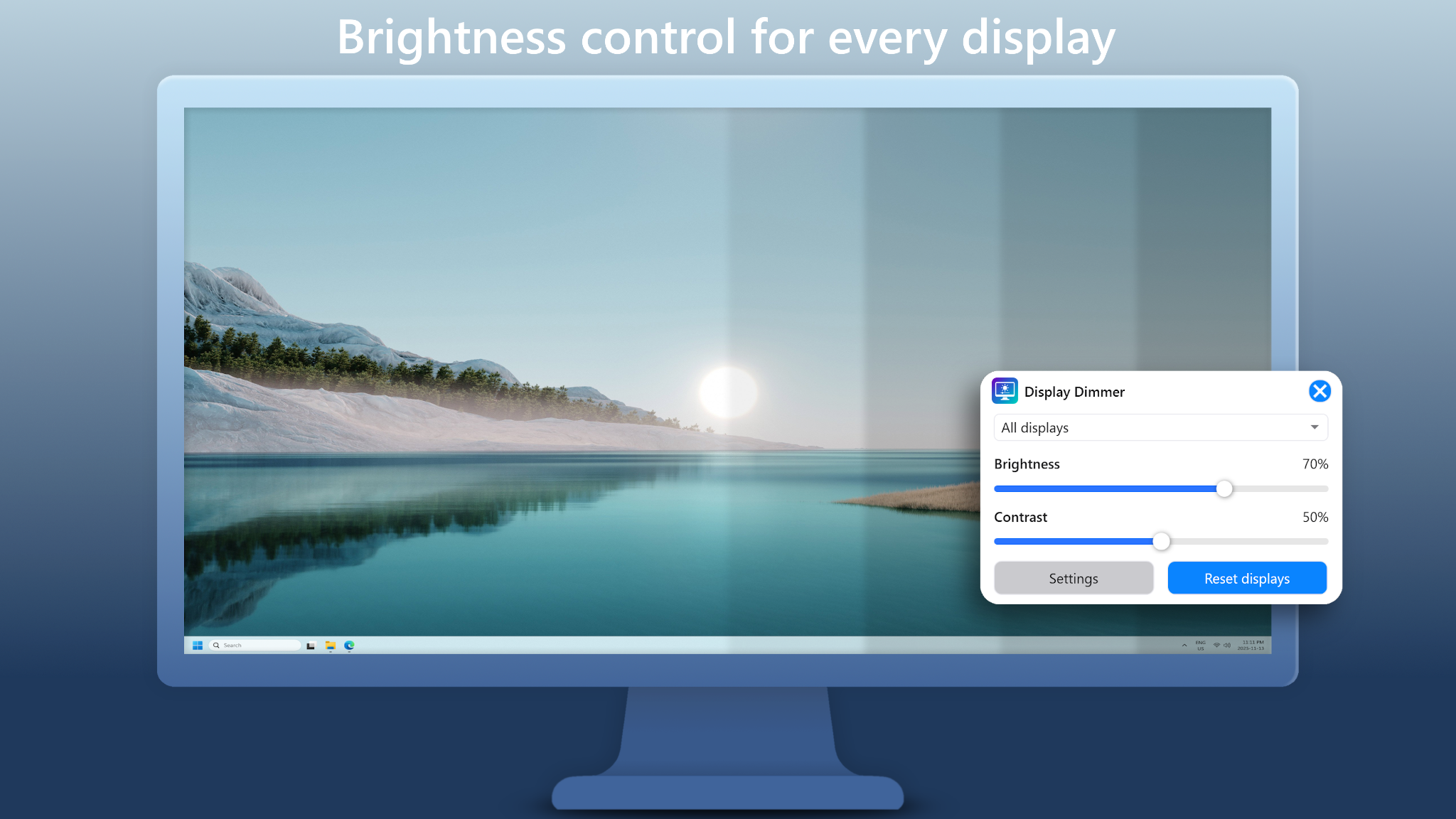
Adjust brightness (and contrast) for any connected display right from Windows. No more reaching behind the screen or digging through on‑screen menus.

Display Dimmer is a lightweight, native Windows app for external monitor brightness control. It uses DDC/CI when supported, with a safe GPU dimming fallback for monitors that don’t behave well with hardware control.

Free download • Optional Pro upgrade • No accounts, no ads
Per-monitor brightness & contrast Multi-monitor friendly DDC/CI control + gamma fallback Schedules + per-app rules Featured in Microsoft Store “New & rising”
Climbing the Microsoft Store’s “New & rising” charts across multiple regions, including Canada, India, the USA, the Philippines, and Indonesia.
Display Dimmer app icon
Display Dimmer
Monitor brightness control for Windows
  • Adjust external monitor brightness from the taskbar
  • Optional DDC/CI hardware control (when supported)
  • Safe GPU-based dimming fallback for unsupported displays
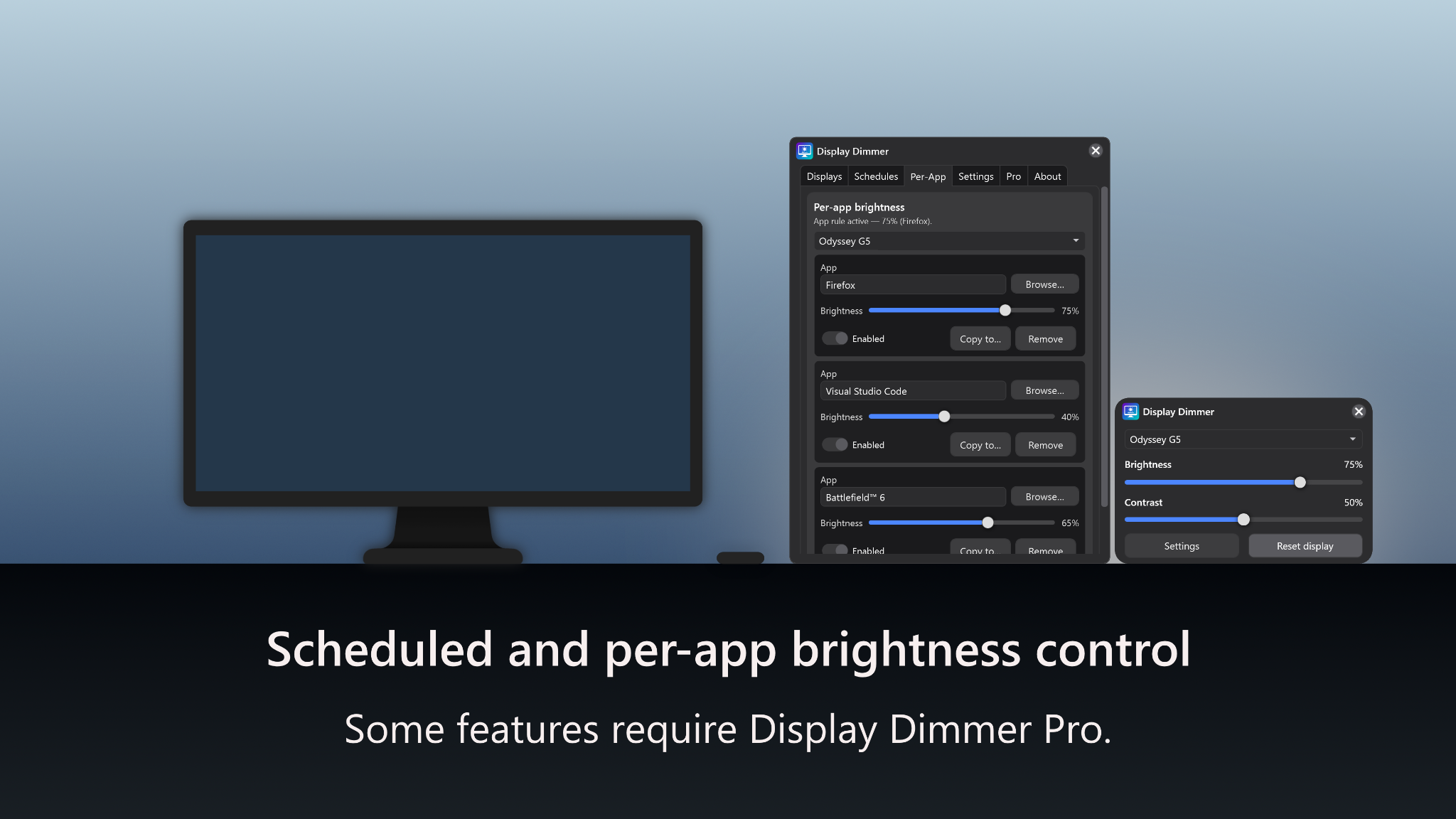
  • Time-of-day schedules and per-app rules
View on Microsoft Store
Windows 10/11 • Works best on DDC/CI-capable monitors

Screenshots

Real UI screenshots from Display Dimmer.

Key features

Everything you need for comfortable monitor brightness control on Windows.

Made for external displays

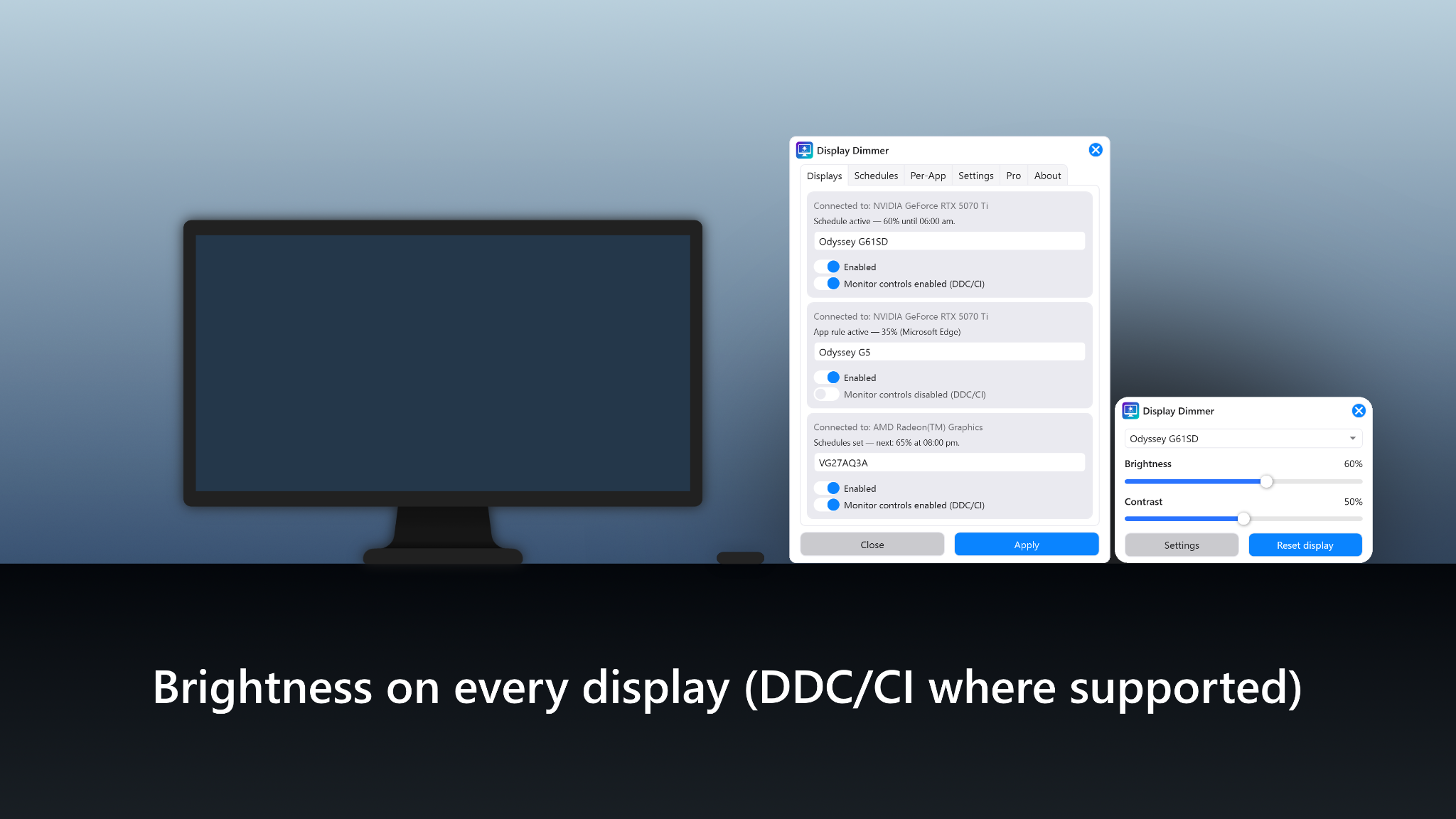
Per‑monitor brightness and contrast controls for docks, dual/triple monitors, and mixed display setups.

Lightweight & responsive

Built as a native Windows app designed to stay responsive and memory‑efficient.

Schedules & per‑app rules

Set time‑of‑day brightness schedules and per‑app rules so your screens adjust automatically.

DDC/CI + fallback

Uses DDC/CI when supported. If hardware control isn’t available (or causes flicker), you can use GPU dimming.

How it works

Getting started is simple: install from the Microsoft Store, pick which monitors to control, then optionally add schedules or per-app rules so brightness adjusts itself.

  • DDC/CI brightness control sends commands directly to the monitor (when supported and enabled in monitor settings).
  • GPU dimming fallback provides a safe alternative for monitors that don’t behave well with DDC/CI.
  • Per-monitor compatibility lets you disable DDC/CI per display for best results.

Learn more in the full DDC vs gamma dimming guide.

Free vs Pro

Free includes 1 scheduled rule and 1 per-app rule for All Displays. Display Dimmer Pro unlocks unlimited rules, including per-display rules, plus additional themes. It’s an optional one-time upgrade inside the same app — no subscription. Upgrade available in-app.

Get Display Dimmer
Install from Microsoft Store in seconds.
Get it from Microsoft Store

What people are saying

Reviews from Microsoft Store users.

“Thank you for creating such a great tool!”

Ameer Microsoft Store review · Germany Feb 3, 2026

“Works great. Actually reduces brightness.”

Jon Microsoft Store review · United States Jan 25, 2026

“This is really the best – simple and effective.”

Husham Microsoft Store review · Malaysia Jan 7, 2026

“Five stars, one of the very few apps which works perfectly with my monitors and telly.”

Nik Microsoft Store review · United Kingdom Dec 30, 2025

“Works well.”

Norbert Microsoft Store review · Hungary Dec 21, 2025
Rated 4.9 ★ on Microsoft Store (based on 12 reviews)

FAQ

Having trouble controlling external monitor brightness? Start at the Troubleshooting hub.

Why use Display Dimmer instead of other brightness apps?
Display Dimmer is a lightweight, native Windows app, not a browser wrapper. That means it stays responsive and memory-efficient, even on multi-monitor setups.

It’s also focused on external displays: you get per-monitor brightness and contrast, optional DDC/CI control where your monitor supports it, and a safe GPU dimming fallback for panels that don’t behave well with hardware commands. You can mix and match these per display so things keep working with docks and adapters.

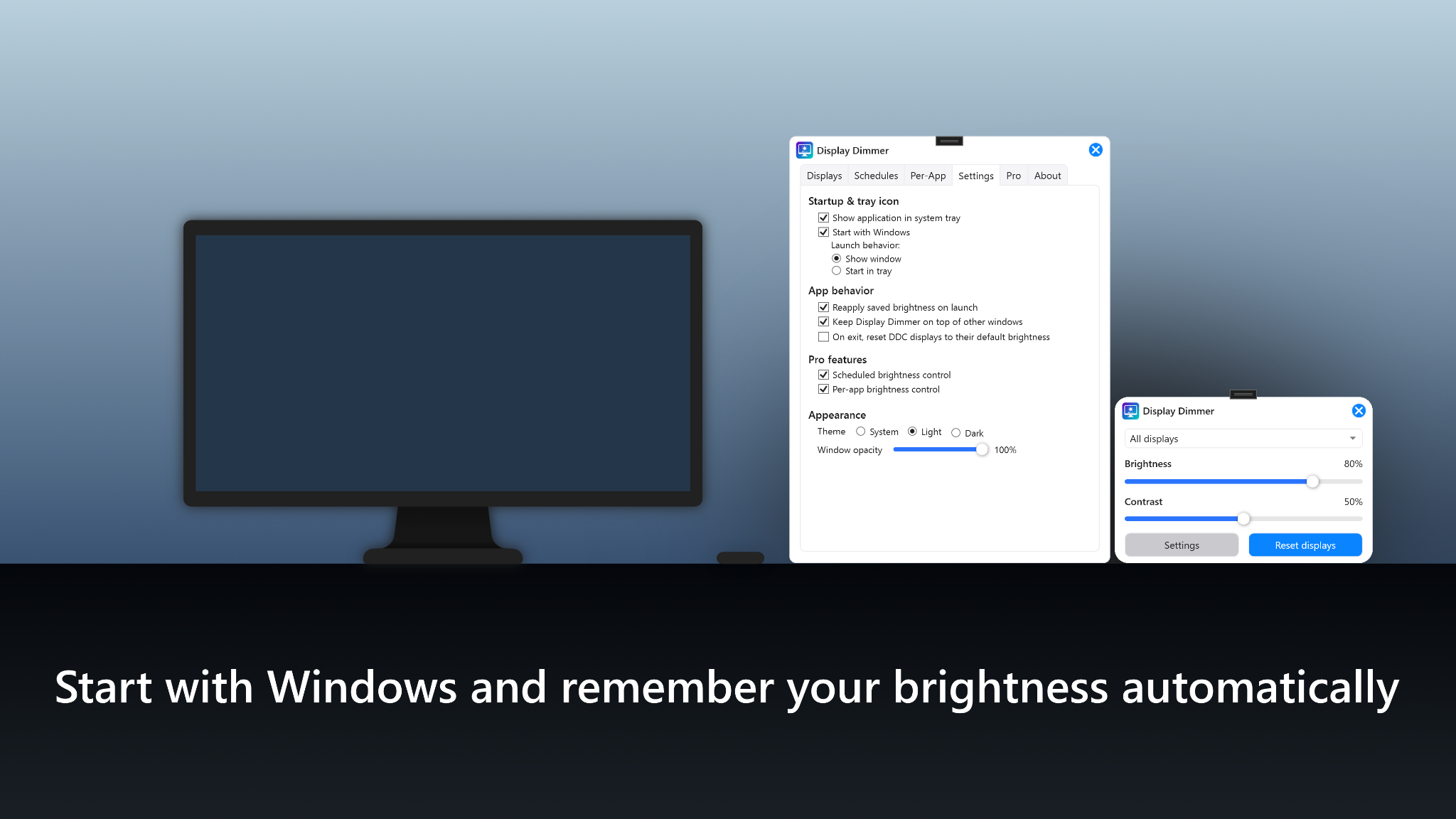
On top of that, Display Dimmer includes time-of-day schedules, per-app rules, and “start with Windows” support so your screens go back to the right level automatically—without ads, accounts, or extra clutter.
Why doesn’t DDC/CI work on my monitor?
DDC/CI support depends on your monitor and connection. Some things to check:
  • Make sure DDC/CI (or “DDC/CI Control”) is enabled in the monitor’s on-screen settings.
  • In some setups, DisplayPort can be more picky with DDC/CI than HDMI, especially when you’re going through a dock, hub, or adapter. If brightness control is unreliable over DisplayPort, try a direct HDMI connection to the same monitor as a test.
  • Some monitors limit or completely disable DDC/CI control while HDR is enabled. If brightness control isn’t working, try temporarily turning off HDR for that display and see if DDC/CI starts responding again.
  • Some TVs and older monitors simply don’t support it at all.
If DDC/CI is unreliable on a specific display, you can disable hardware control for that monitor in Display Dimmer and use GPU dimming on that screen instead.

More troubleshooting: Enable DDC/CI on your monitor, DDC/CI through docks / hubs, and HDR & brightness control.

Does it work with laptops?
Display Dimmer is built for external monitors. The app won’t replace your laptop’s built-in brightness keys, but it works great with external displays connected over HDMI, DisplayPort, USB-C, or a dock (as long as the monitor or chain supports brightness control).

For your built-in laptop screen, Display Dimmer can still dim it — but it does so using gamma dimming (a software dimmer), rather than true hardware brightness control.
What’s the difference between Free and Pro?
The free version gives you per-monitor brightness and contrast, plus 1 schedule and 1 per-app rule for All Displays.

Display Dimmer Pro unlocks unlimited schedules and unlimited per-app rules, including per-display rules and extra themes. It’s an optional upgrade inside the same app.
Does Display Dimmer collect any personal data?
Display Dimmer doesn’t use accounts, ad tracking, or third-party analytics. Your settings are stored locally on your PC.

The app sends a small amount of anonymous usage telemetry (for example: that the app started, which settings tabs are opened, or that a feature like schedules or Gamma Guard was enabled) plus optional technical diagnostics if you choose to send a report. This data does not include your files, filenames, file paths, screenshots, browsing history, or passwords, and is only used to debug issues and improve the app.

Microsoft may provide the developer with aggregated install and usage stats through the Microsoft Store, depending on your Windows and Store privacy settings. For details, see the privacy page.

Troubleshooting & guides

Quick fixes for DDC/CI, docks, HDR, and Windows brightness quirks.

Still stuck? Contact support.