01
What DDC/CI does
DDC/CI is a monitor-control standard. Compatible software sends requests through the display connection, and the monitor changes its own supported settings.
The monitor, cable, and every device between the computer and monitor must carry those control messages. A dock, adapter, switch, KVM, or USB graphics device can pass video while still blocking DDC/CI.
DDC/CI is not a Windows-only standard. Display Dimmer uses it on Windows to request supported monitor changes.
02
Should DDC/CI be on or off?
Keep DDC/CI on when you want Display Dimmer or another compatible app to control the monitor’s own settings.
This opens the control channel. Brightness changes only when compatible software sends a request.
Compare the result if the monitor behaves unpredictably or conflicts with another monitor-control tool.
03
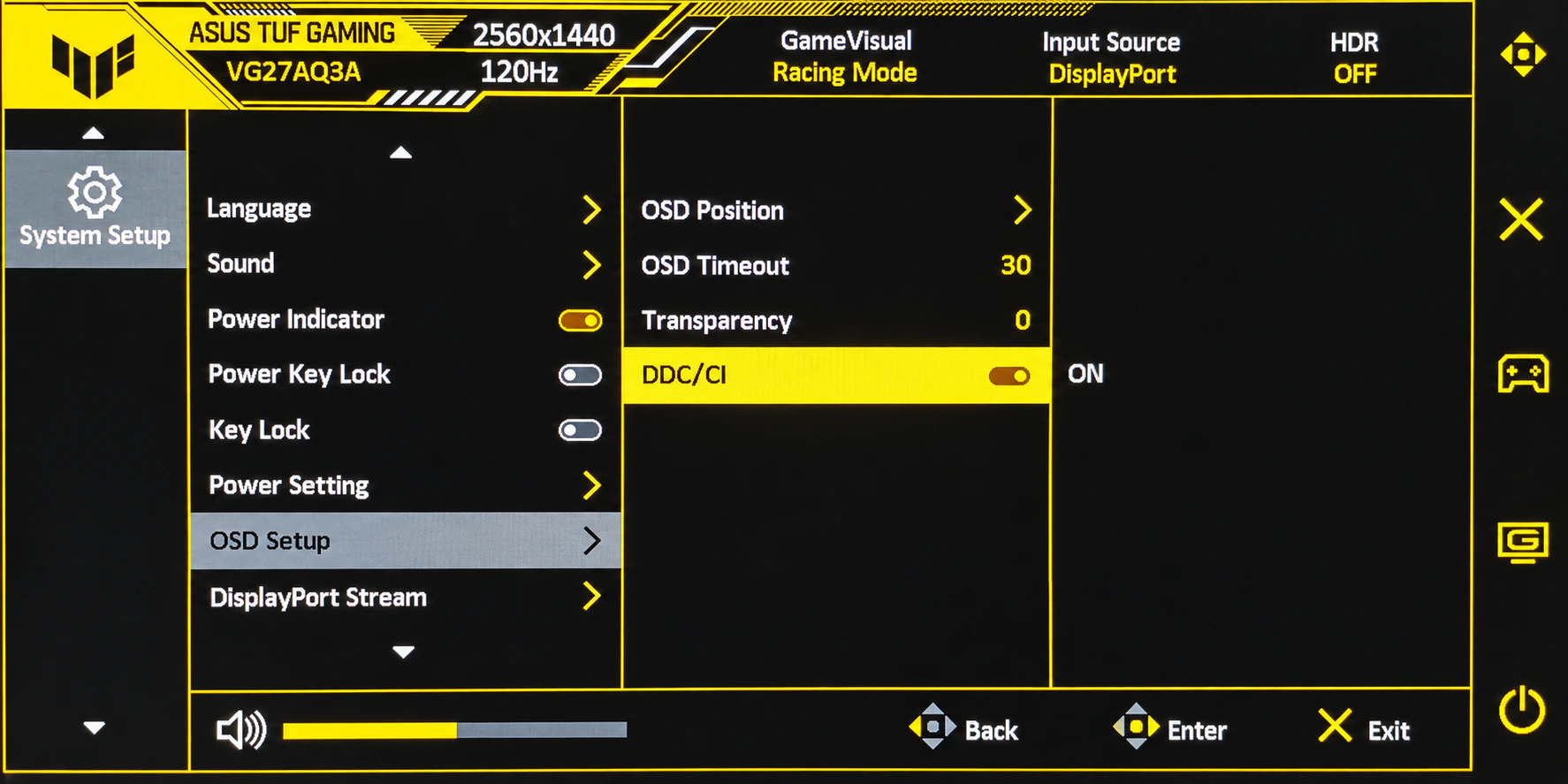
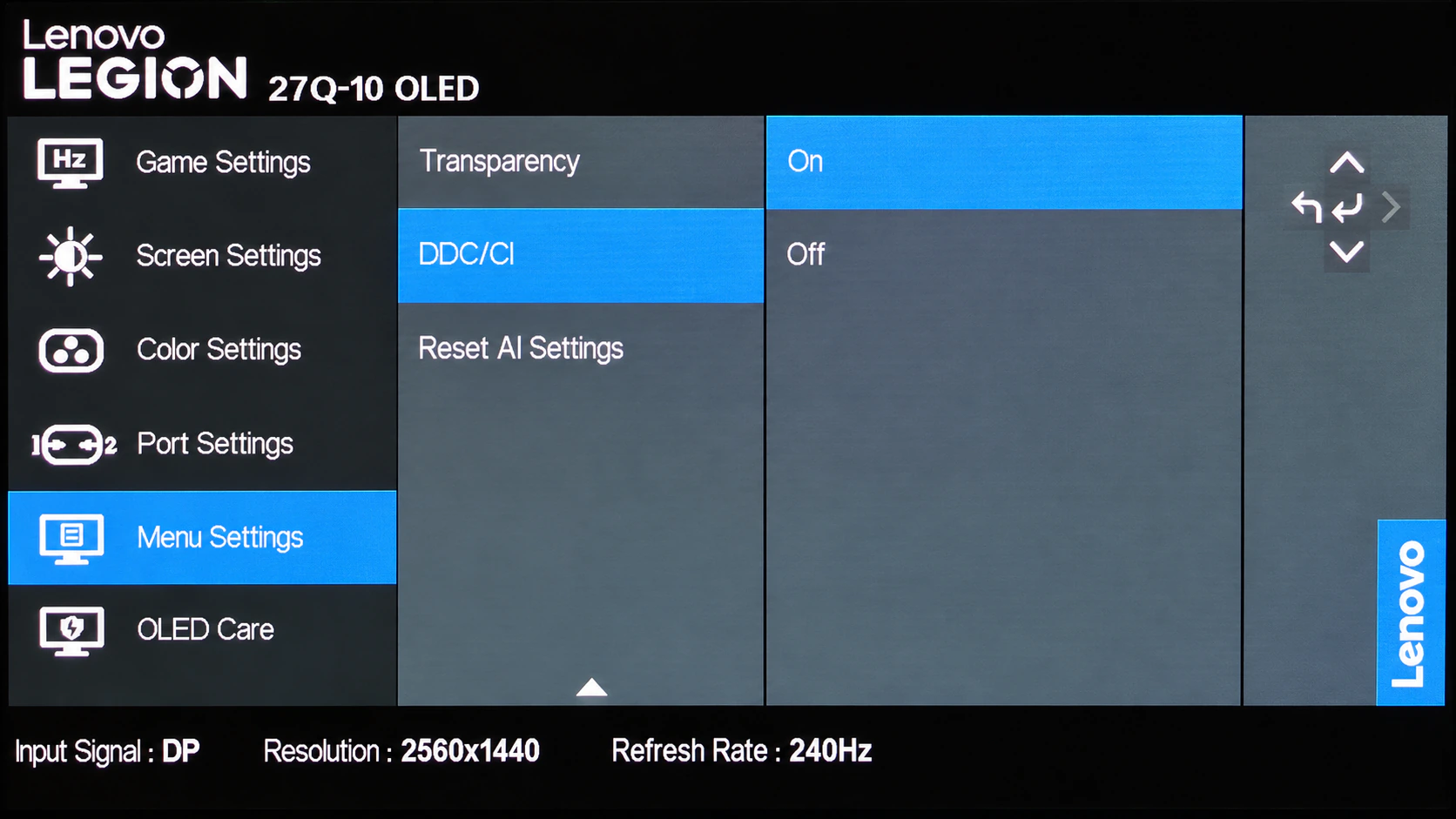
Enable DDC/CI in the monitor menu
The location varies by model. Use the monitor’s own controls and check its manual when the setting is not obvious.
- 1Open the on-screen menu
Use the physical buttons or joystick on the monitor.
- 2Find DDC/CI
Look through the monitor settings. Do not assume another control label means the same thing unless the monitor manual says so.
- 3Set DDC/CI to On
Return to your display-control app and test brightness again. Turn the monitor off and on if needed.
Can’t find DDC/CI? Check the manual for your exact monitor model.
Verified menu examples
Where to find DDC/CI: two monitor examples.
04
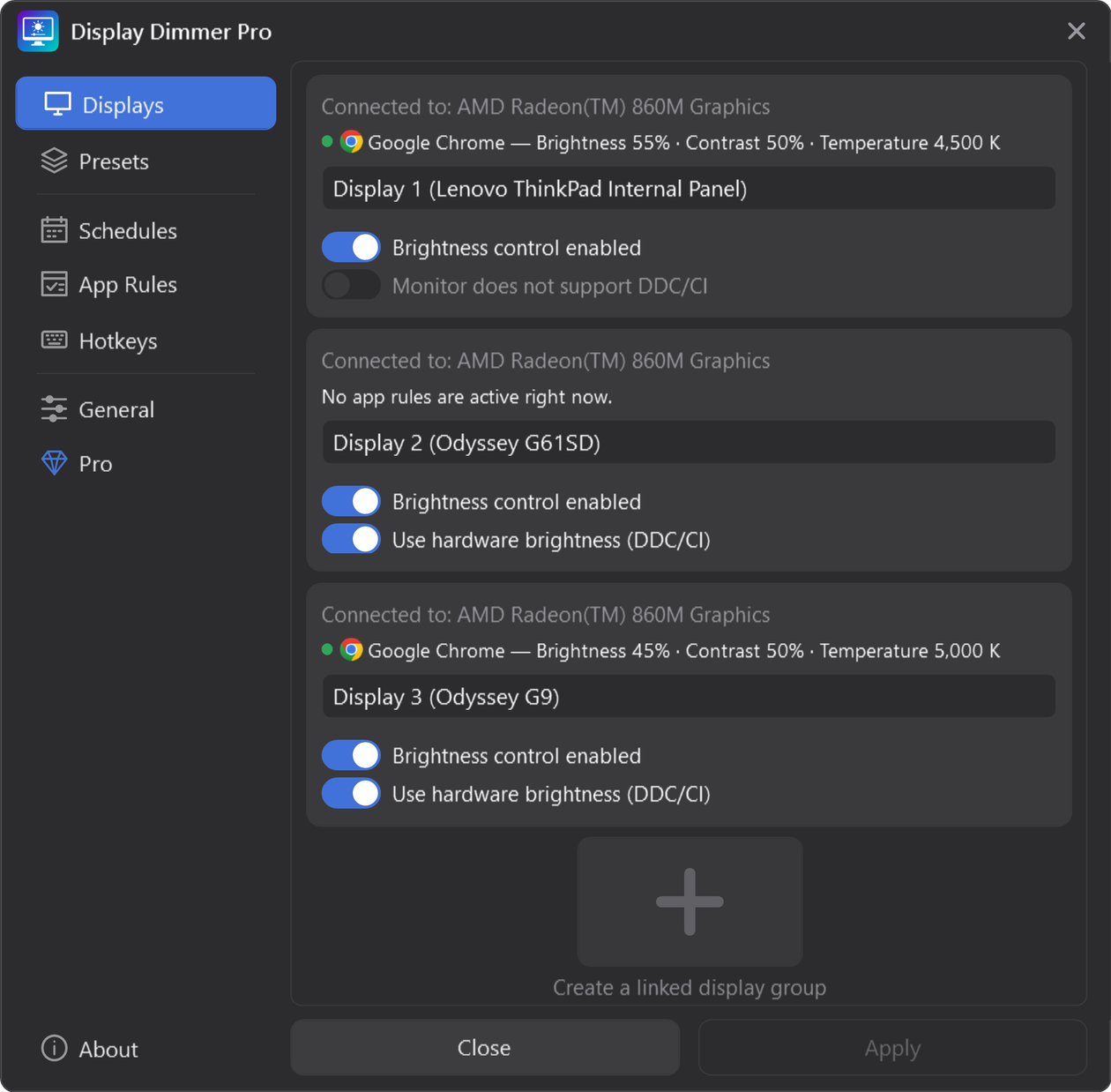
Enable hardware brightness in Display Dimmer
After enabling DDC/CI on the monitor, turn on hardware brightness for that display in Display Dimmer.
- 1Open Settings → Displays
Choose the external monitor you want to control.
- 2Turn on Use hardware brightness (DDC/CI)
Enable this separately for each monitor you want to control.
05
Check whether hardware brightness is working
Make a small brightness change in the app, then check the brightness value in the monitor’s own menu. A matching change is evidence that hardware brightness control is responding.
Move brightness a small amount. A change of a few points is enough for the check.
Open the monitor menu. Find the monitor’s own brightness value.
Compare the value. A corresponding change indicates the monitor accepted the request.
A darker image alone is not proof: software dimming can also darken the picture. Some monitor menus do not refresh their displayed value immediately, so one unchanged reading is not a conclusive failure.
06
Still not working?
Work through these checks in order. Stop when hardware brightness starts responding.
- Test a direct connection.Remove a dock, adapter, KVM, switch, capture device, or USB graphics device from the path when possible.
- Try another monitor input.For example, compare DisplayPort with HDMI if both are available.
- Open the monitor menu once.Some monitors begin responding after the on-screen menu wakes the control channel.
- Temporarily turn off HDR.HDR can use a picture mode that changes or blocks monitor control.
- Power-cycle later if needed.After checking the settings and connection, turn the monitor fully off and on. This is a troubleshooting step, not a requirement for every monitor.
- Check available updates.Monitor firmware, dock firmware, and graphics drivers can affect the display path.
Connection-specific help
Choose the path or symptom that matches your setup.
Software dimming may still be available when hardware brightness control is not. Compatibility depends on the graphics and display configuration, particularly with HDR.
Common questions
Is DDC/CI safe to leave on?
Yes, for normal software control. Turning it on allows compatible apps to request supported monitor changes; it does not change brightness by itself.
Does DDC/CI affect gaming performance?
DDC/CI is a monitor-control channel. Enabling it does not change resolution, refresh rate, or picture mode. Avoid running multiple monitor-control tools that send conflicting changes.
Do all monitors and connections support DDC/CI?
No. The monitor must support the requested control, and the full connection path must pass the messages. Some docks, adapters, switches, KVMs, DisplayLink paths, MST chains, and monitor inputs can block them.
Why can’t I find a DDC/CI setting?
Its location and wording vary by model, and some monitors may enable DDC/CI by default without showing a switch. Check the manual for your exact monitor model, and do not assume a similarly named setting is DDC/CI unless the manual confirms it.
Does a darker screen prove DDC/CI is working?
No. Software dimming can make the image darker without changing the monitor’s own brightness setting. Compare the brightness value in the monitor menu when that value updates.
Should I restart or power-cycle the monitor?
Not as the first step. Confirm both DDC/CI settings and test a direct connection first. A full monitor power-cycle is a reasonable later troubleshooting step.
Ready to test it?
Try one small brightness change.
Install Display Dimmer, enable hardware brightness for the monitor, then compare the monitor’s own value.